Multiprocessing operating systems like Linux and BSDs employ several methods
for maximizing CPU utilization. A process is simply a program in
execution. Since there’ll be more than one Linux process running at
a given time, process management in Linux is extremely crucial.
Users often face problems like CPU resource throttling when running
too many programs. Situations like this emerge when the CPU fails
to handle the growing number of processes. Although this doesn’t
depend on the power of your CPU entirely, dealing with hanged or
zombie processes can be quite frustrating. To help you mitigate
such occurrences, we’re outlining some standard ways of killing
these processes. [1]
Master Unresponsive Process
Management in Linux
You’ll learn several ways to terminate a Linux process that
isn’t responding at all. If you’re coming from Windows, you might
be familiar with Ctrl+Alt+Delete.
Similarly, Mac users have the Command+Option+Escape
method of killing frozen processes. Linux is much more versatile
than its counterparts and offers more than one method for tackling
dead/unresponsive processes.
Different Methods of Killing a
Dead Linux Process
We will mainly outline two methods for killing zombie processes.
We’ll use the Linux terminal[2]
for the first method. For this, we’ll first need to identify the
process id. Once obtained successfully, we can use this PID to kill
the program by sending specific signals to that PID.
You will also learn how to perform such Linux kill jobs from the
graphical user interface or the X window. We are going to leverage
the ‘System Monitor’ application available in Ubuntu for
this. Although this is a GNOME application, similar tools are
available for other Linux desktop environments. [3][4]
Terminate an Unresponsive Process
From the Command Line
There are several tools for terminating an unresponsive or
hanged process from the command line, including
kill, pkill, and
killall. These commands work by sending specific
signals to these unresponsive processes. You are going to need the
process id or PID information so that you can send
them the required terminating signal.
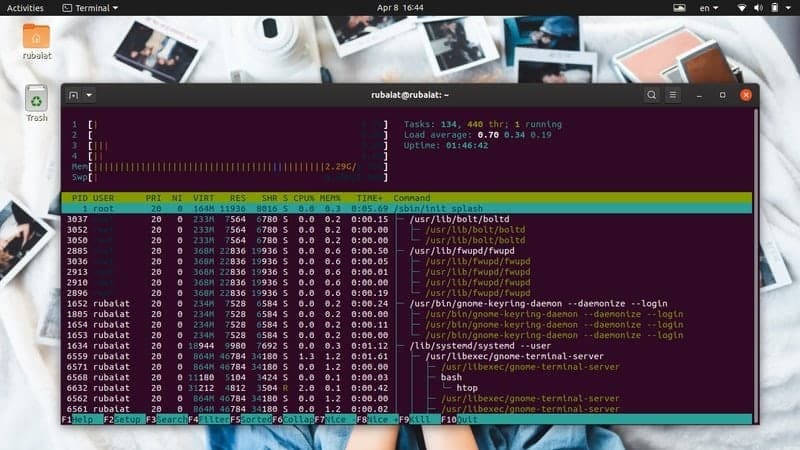
The PID or process id is a unique number that identifies a
process. These are created by the Linux kernel during runtime, and
the process scheduler controls their CPU activities. So, whenever
you invoke an application, the kernel will first spawn the
necessary processes and assign them these unique PID values. There
can be multiple PIDs associated with a process. Moreover, each
process has a single parent process with a unique PPID (Parent
Process ID).
So, if you can find out this PPID, then you’ll be able to send a
kill signal using programs designed for this purpose. Below you’ll
learn how to check running processes in Linux and identify their
PPID from the terminal.
Find Out the PPID
Information
You can find out the PPID of a process using several process
management commands in Linux, such as pidof,
pstree, and pgrep. Let us examine
them one by one and see how to obtain the PID of a Linux
process.
Method 1: Using the ps Command
The ps command in Linux displays all running processes alongside
other process-related information like the PID in the terminal. We
can use this command to list all processes and then filter out a
specific process by using Linux grep commands[5]. It should show us the
process id information we’re interested in.
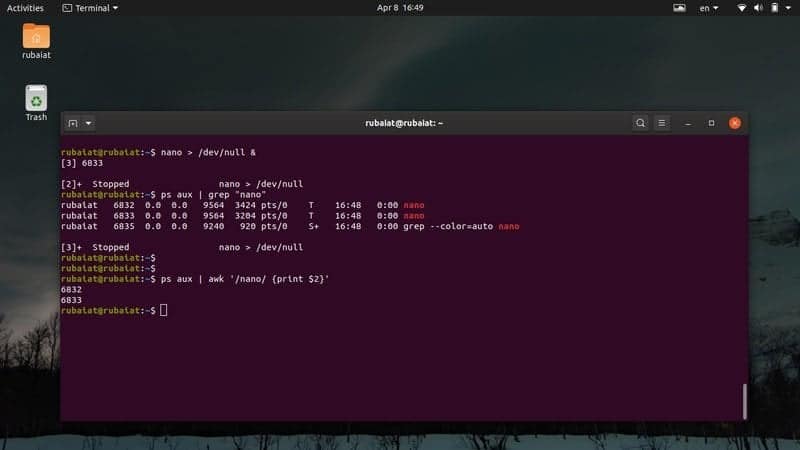
$ nano > /dev/null &
$ ps aux | grep "nano"
First, we’ve invoked a Linux text editor in the background. Then
we’ve used the ps command alongside the grep command to find out
the PPID of this editor. The output may contain several process
ids, but we are only interested in the first one since that is our
PPID. We can also use the Linux awk command to find out this
information, as demonstrated below. [6]
$ ps aux | awk '/nano/ {print $2}'
This command is more flexible since it suppresses all irrelevant
information. It will only show the PPID information we’re looking
for.
Method 2: Using the pstree Command
The pstree command provides us a tree-like view of all running
processes. It provides a graphical view of the Linux task list from
the terminal window. You can view the PPID as well as all the PID
information of a process using this command. Check out the below
examples to learn how to leverage pstree for finding the PPID of a
specific process.
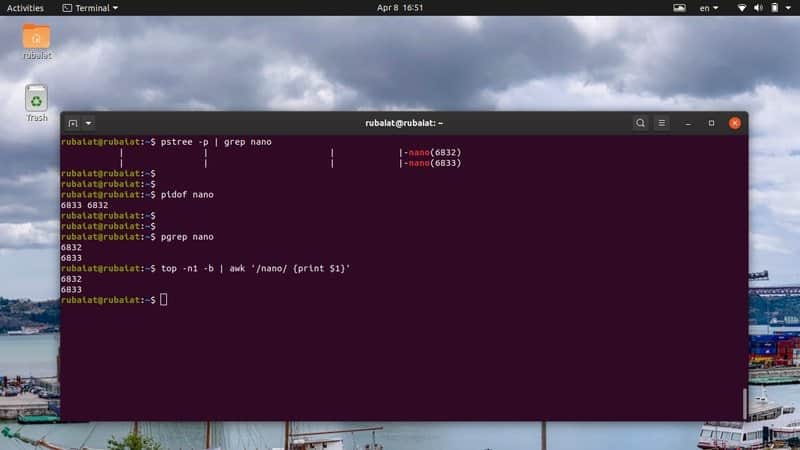
$ nano > /dev/null &
$ pstree -p | grep 'nano'
$ pstree -p | awk '/nano/ {print $NF}'
First, we have spawned a process in the background by using the
first command. The second command then retrieves the PPID of this
process by using the grep command in Linux. Finally, the
third command shows us how to retrieve this value using the awk
command. [7]
Method 3: Using the pgrep Command
The pgrep command is one of the easiest process management
commands in Linux. It checks the list of all running processes and
prints out the PPID of a given process in the standard output or
the terminal in our case. It works by performing regex matching and
is extremely well suited for writing Linux shell scripts[8].
$ nano > /dev/null &
$ pgrep 'nano'
We’ve spawned the nano process similarly to the earlier
examples. Then we have obtained its PPID by using the pgrep
command. Once we obtain this value, we can perform the Linux kill
job very easily.
Method 4: Using the pidof Command
The pidof command is another simple but useful way of
determining the PPID of a Linux process. It displays both the PPID
and all other PIDs associated with a process. Check out the below
examine to see how to use this in practice.
$ nano > /dev/null &
$ pidof nano
$ pidof -s nano
When using the pidof command to check running processes in
Linux, you will often see multiple PIDs. Usually, in such cases,
the first or the last number is the PPID, depending on whether
they’re in an ascended order or in descendent order. You can use
the -s option of pidof to mitigate this. It will
display only the PPID value.
Method 5: Using the top Command
The top command provides a real-time view of all running
processes in Unix-like operating systems. You can use this to
display the Linux task list in your terminal and find out the PID
information of a specific process.
$ top
Use the following commands to retrieve the PPID of a particular
process from the output of the top command.
$ nano > /dev/null &
$ top -n1 -b | grep 'nano'
$ top -n1 -b | awk '/nano/ {print $1}'
Since top provides real-time output instead of dumping static
data to the terminal, we’ve used the -n1 and
-b option to print the static output. Then you can
retrieve the PPID information by using either the grep command or
the awk command in Linux[9].
Kill the Unresponsive Linux
Process
You can use any of the above methods to retrieve the PPID of the
unresponsive process. Once you obtain this, it is time to kill the
process altogether. There are several commands that allow us to do
this, such as kill, pkill, and
killall. We’ll see how they work one by one in the
following sections.
Method 1: Using the kill Command
The kill command is widely used by Linux admins due to its
simplicity and robust actions. It takes the PID of the process and
a signal. The kernel kills/halts the execution of the process based
on this signal. You can use the next command to view all available
signals to the kill command.
$ kill -l
As you can see, kill offers 64 different signals. However, we
will only discuss two of them in this guide. These are signal
9(SIGKILL) and signal 15(SIGTERM). SIGTERM or signal 15 is the safe
method of killing an unresponsive process. SIGKILL or signal 9, on
the other hand, force kills a Linux process.
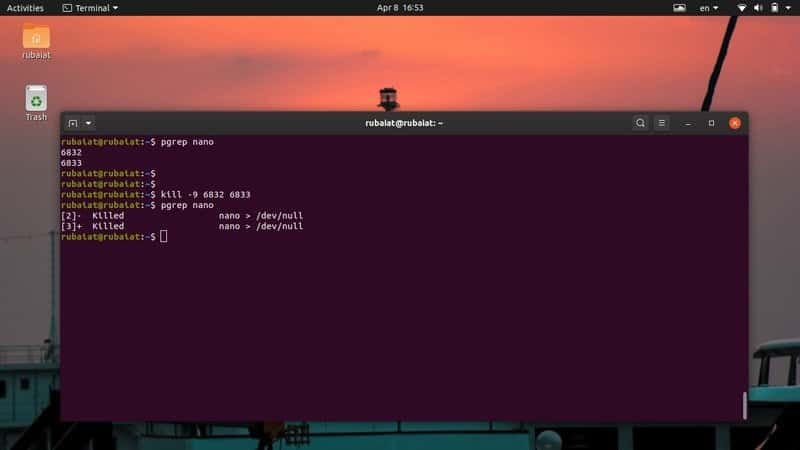
$ kill -9 8631
$ kill -KILL 8631
The above commands are equivalent, and they will force kill the
process that has the PID 8631. That is the PPID of the process
‘nano’ in my system. Replace this with the PID of the unresponsive
process in your system.
$ kill -15 8631
$ kill -TERM 8631
The above commands are also equivalent and will kill the process
gracefully. That’s why it can take some time before the process is
killed. Moreover, you may need to append sudo
before the kill command if the process is owned by a different
user.
Method 2: Using the pkill Command
The pkill command is one of the most versatile process
management commands in Linux. It allows us to kill an unresponsive
process based on its name, PID, owner, and other runtime
attributes. It is a perfect tool for starting users or people who
are not familiar with many standard terminal commands[10].
$ pkill nano
$ pkill 8631
$ pkill -e nano
$ pkill -f nano
You may use any of the above pkill commands for killing a
zombie/unresponsive process in Linux. Use the -e
option if you want a confirmation on the Linux kill job. The pkill
command also allows users to send specific terminating signals.
Method 3: Using the killall Command
The killall command allows users to kill unresponsive processes
based on their names. It is easier to use but can pose troubles if
you are not cautious. Since killall terminates processes based on
names, there is always a chance that you end up killing a process
by chance. For example, if there are different versions of nano
available in your system, the first example will kill all of
them.
$ killall nano
$ killall --verbose nano
$ killall --interactive nano
$ killall --signal KILL nano
The first example shows the basic usage of the killall command
in Linux. The second command will report whether the kill job
successful or not, and the third command will ask the user for
confirmation before it kills the process. By default, killall uses
the SIGTERM signal for killing processes. However, you can specify
the signal manually, as shown in the last example.
Method 4: Using Handy One-Liners
The true beauty of Linux lies in the fact that it allows users
to create sophisticated command combinations based on their needs.
To demonstrate this, we have outlined a few one-liners in the
section.
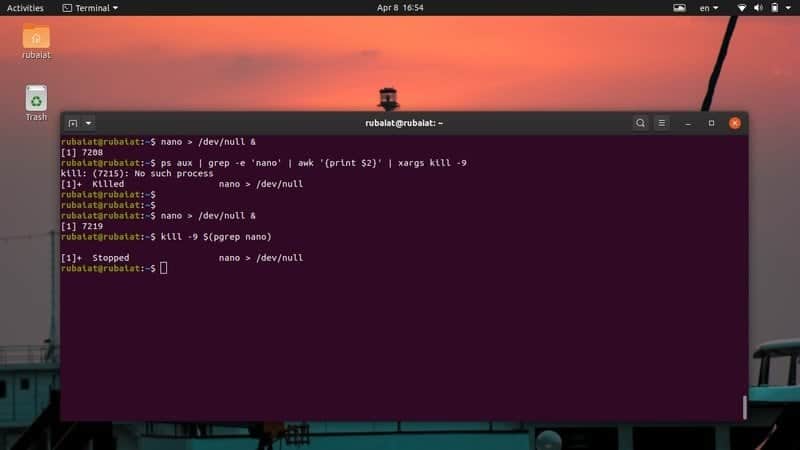
$ nano > /dev/null &
$ kill -9 $(pgrep nano)
$ ps aux | grep -e 'nano' | awk '{print $2}' | xargs kill -9
In the first example, we have used shell interpolation to pass
the PID of the process ‘nano’ to the Linux kill command. The second
example utilizes several everyday terminal commands[11] and I/O redirection to
kill off the process. You can curate your own nifty one-liners once
you’re comfortable with the Linux terminal.
Method 5: Kill Multiple Processes using Linux Shell
Scripts
Sometimes users might want to terminate more than a single
process. We can easily automate such tasks by writing simple shell
scripts. If you are interested in this topic, then check our previous guide on Linux shell
scripts[12]. The following script
will retrieve the PPID of the processes you want to kill and then
terminate them using kill signals.
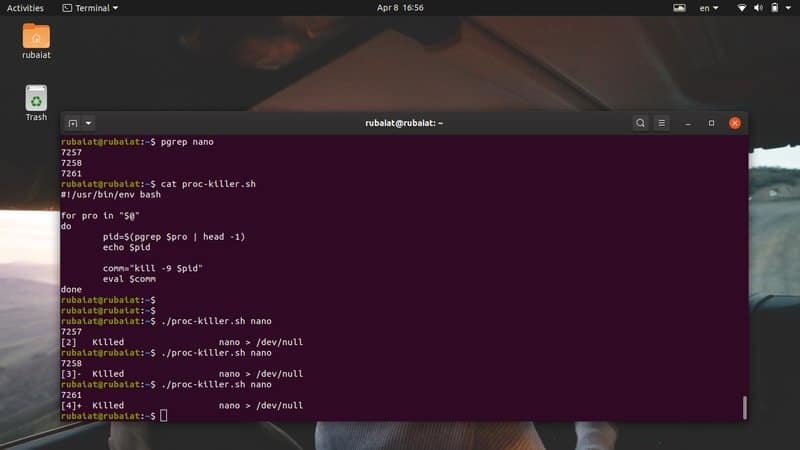
$ nano proc-killer.sh
#!/usr/bin/env bash

for pro in "[email protected]
[13]” do pid=$(pgrep $pro | head -1) echo
$pid comm=”kill -9 $pid” eval $comm done
Now, save this file and add execution permission by issuing the
below command.
$ chmod +x proc-killer.sh
You can now pass this script the name of the processes you want
to terminate.
$ ./proc-killer.sh nano gedit vlc
Simply replace the arguments with the names of the unresponsive
Linux processes in your system.
Terminate an Unresponsive Process
From the GUI
You can also terminate an unresponsive process from the
graphical user interface or the X window. We discuss two methods
for doing this in the following section.
Method 1: Using the xkill Application
Modern Linux distributions utilize the X graphical window for
providing users with an elegant graphical experience. There is a
simple tool called xkill that allows users to close an unresponsive
GUI window. It is possible since, in Linux, the title window of an
application is separate from the application itself.
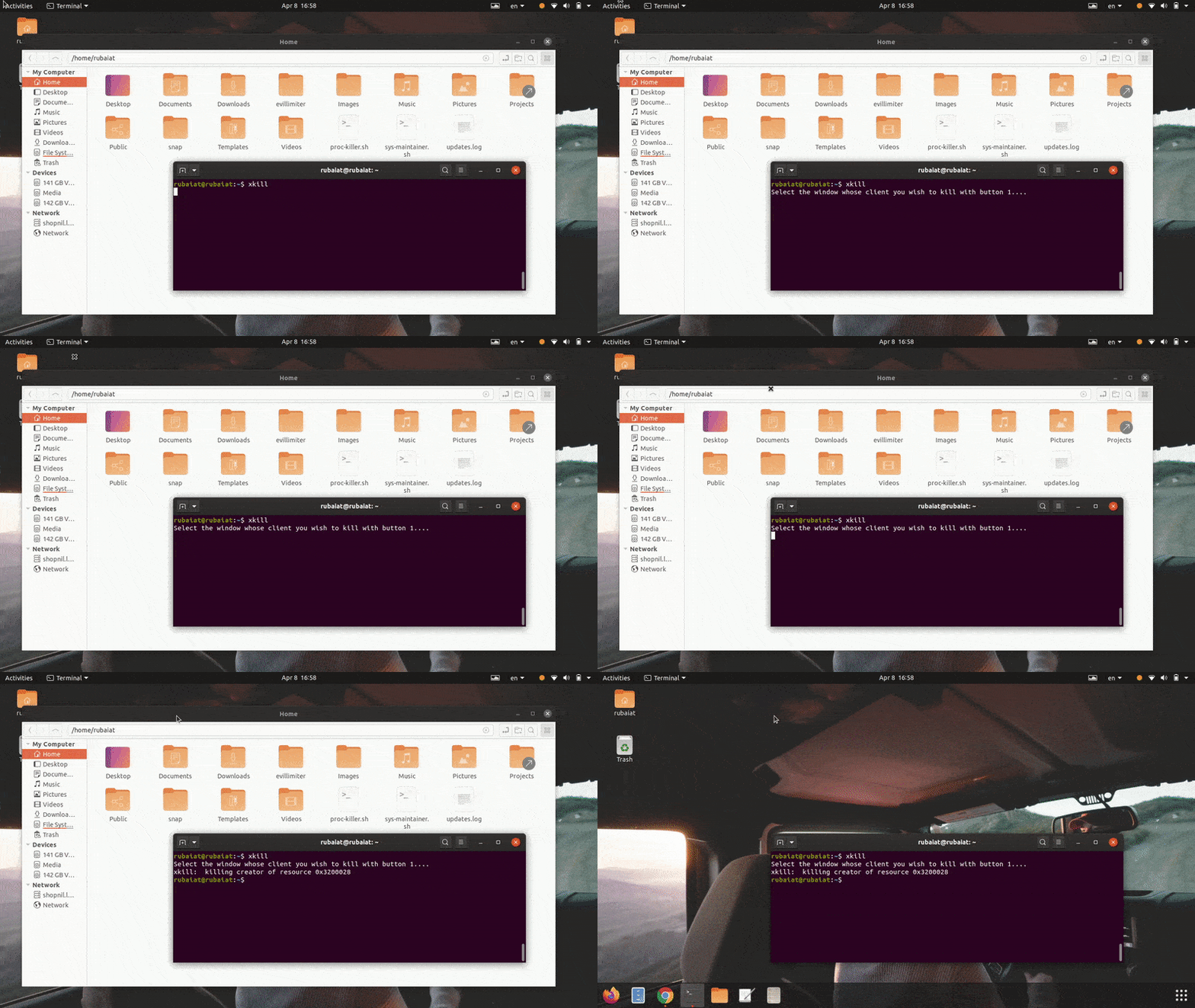
Simply go to your Linux terminal emulator and type in xkill. It
will transform your mouse cursor into an X button, which can be
used for killing any GUI window.
$ xkill
Now, all you need to do is just click on the unresponsive
application’s window bar, and it will be killed off and disappear
instantly.
Method 2: Using the System Monitor Application on
Ubuntu
Most mainstream Linux distributions[14] come with some sort of
GUI monitoring tools which allow users to terminate a hanged Linux
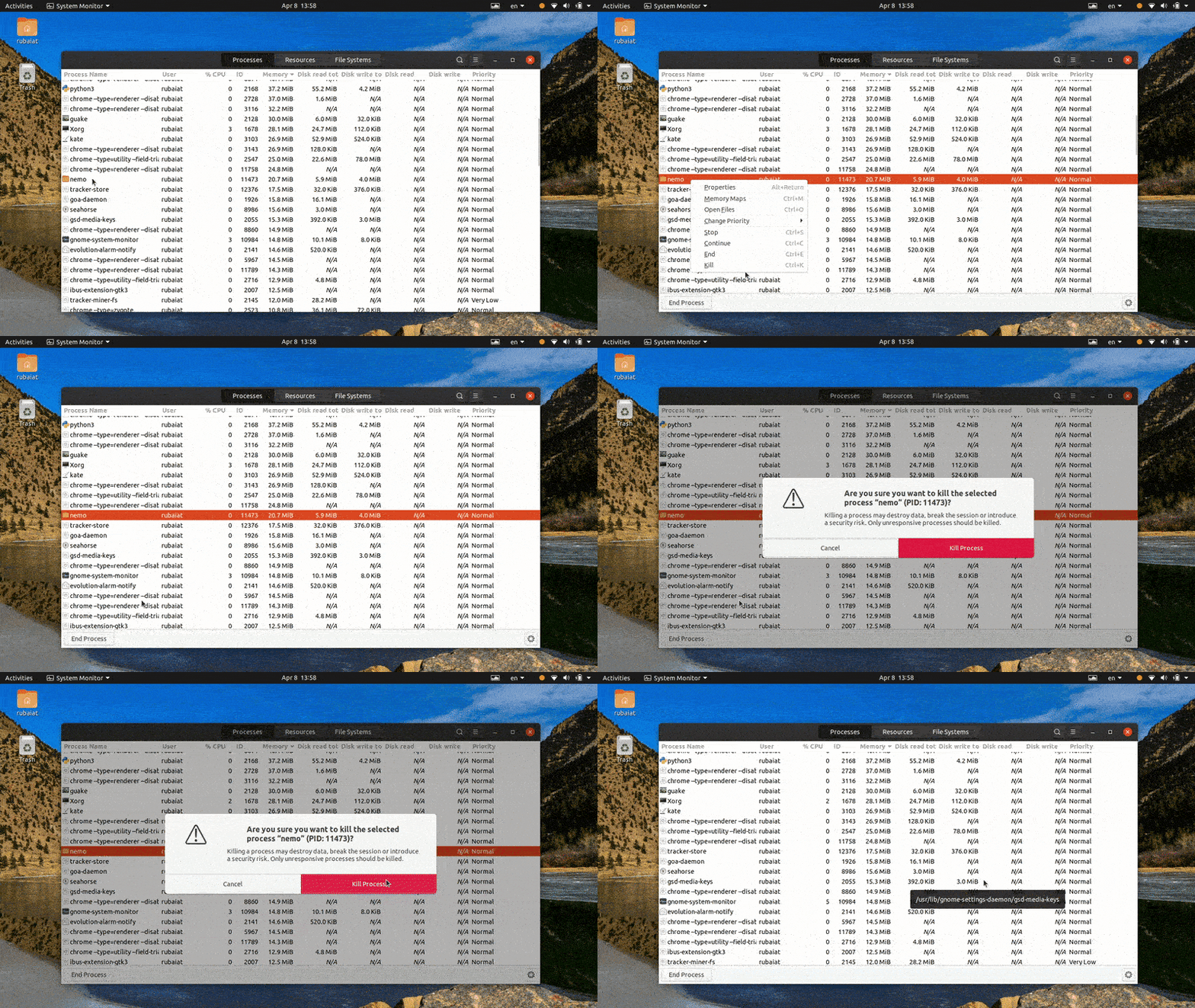
process graphically. For example, the System Monitor application on
Ubuntu will enable us to terminate an unresponsive process in an
intuitive manner. You can simply select the dead process from the
process list and kill it by right-clicking on the process and
selecting the kill option.
There are many more alternatives to this application, and we are
sure that you can easily find one for your distribution or desktop
environment.
Ending Thoughts
Since process management in Linux is very versatile, users often
get frustrated when dealing with unresponsive processes. That is
why our editors have outlined all the possible ways of terminating
a dead Linux process in this guide. After reading this, you should
be able to kill any unresponsive processes from either the
command-line or from the GUI. You can also use any of our one-liner
commands for dealing with such nuisances in the shortest possible
time. Moreover, you can even kill more than one single process by
using our simple shell script. So hopefully, you obtained the
information you were after from our guide.
References
- ^
Linux
and BSDs (www.ubuntupit.com) - ^
the
Linux terminal (www.ubuntupit.com) - ^
the X
window (en.wikipedia.org) - ^
Linux
desktop environments (www.ubuntupit.com) - ^
Linux
grep commands (www.ubuntupit.com) - ^
the
Linux awk command (www.ubuntupit.com) - ^
the grep
command in Linux (www.ubuntupit.com) - ^
writing
Linux shell scripts (www.ubuntupit.com) - ^
the awk
command in Linux (www.ubuntupit.com) - ^
standard terminal commands
(www.ubuntupit.com) - ^
everyday terminal commands
(www.ubuntupit.com) - ^
check
our previous guide on Linux shell scripts
(www.ubuntupit.com) - ^
[email protected]
(www.ubuntupit.com) - ^
mainstream Linux distributions
(www.ubuntupit.com)
Read more https://www.ubuntupit.com/how-to-kill-or-terminate-a-linux-process/
 Latest News
- RB Leipzig Appoint First Woman CEO In German Football December 10, 2025